How to Loop Your Webcam on a Mac (Two Ways, Step by Step)
To loop your webcam on a Mac, you run a virtual camera that plays a short video of you on repeat, then select that virtual camera in Zoom, Meet, Slack, Teams, or any app with a camera picker. There are two practical ways to set this up: CamLoop, a menu-bar app purpose-built for looping yourself with one hotkey, or OBS Studio with a looped media file, the do-it-yourself route. This guide walks through both, plus what makes a loop actually look natural instead of obviously repeated.
If you only want a video file to play on repeat on your own screen, that is a different and much simpler job: see how to loop a video on a Mac instead.
Why loop your webcam at all?
The usual reason is simple: being on camera for hours is exhausting, and there is no graceful way to step away for thirty seconds without becoming the one dark tile in the grid. A believable loop of you sitting and listening keeps your tile alive while you refill your coffee, stretch, or answer the door, and if your microphone passes through, you stay reachable the whole time. (If this is your daily reality, we wrote about why camera fatigue is real and what helps.)
Method 1: CamLoop (built for this, one hotkey)
CamLoop is a native macOS menu-bar app that does exactly one job: record a few seconds of you, loop it through a virtual camera, and switch between live and loop with a global hotkey. There are no scenes to build and no files to wire up.
- Install CamLoop and approve the camera extension. Download it free, move it to Applications, and approve the camera extension when macOS asks (a one-time step, here is the two-minute walkthrough). This is what makes "CamLoop" appear as a camera in every app.
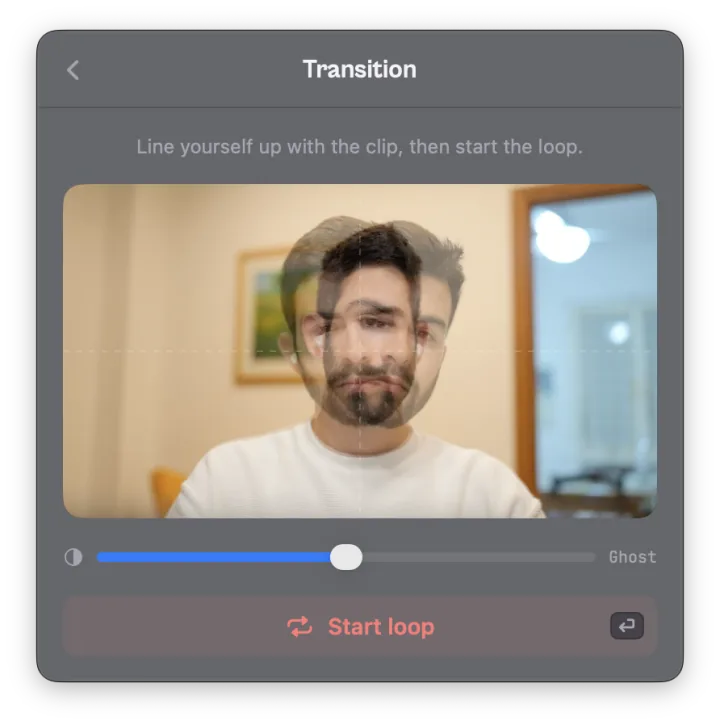
- Record a short clip. Click Record and sit naturally for a few seconds. A ghost overlay of the first frame helps you line up so the loop starts without a visible jump.
- Select CamLoop as your camera. In your meeting app's camera picker, choose CamLoop, the same way you would pick a USB webcam. Once per app.
- Switch with the hotkey. One press plays your loop while you step away; another press cuts back to your live camera. Your audio passes through untouched the whole time.
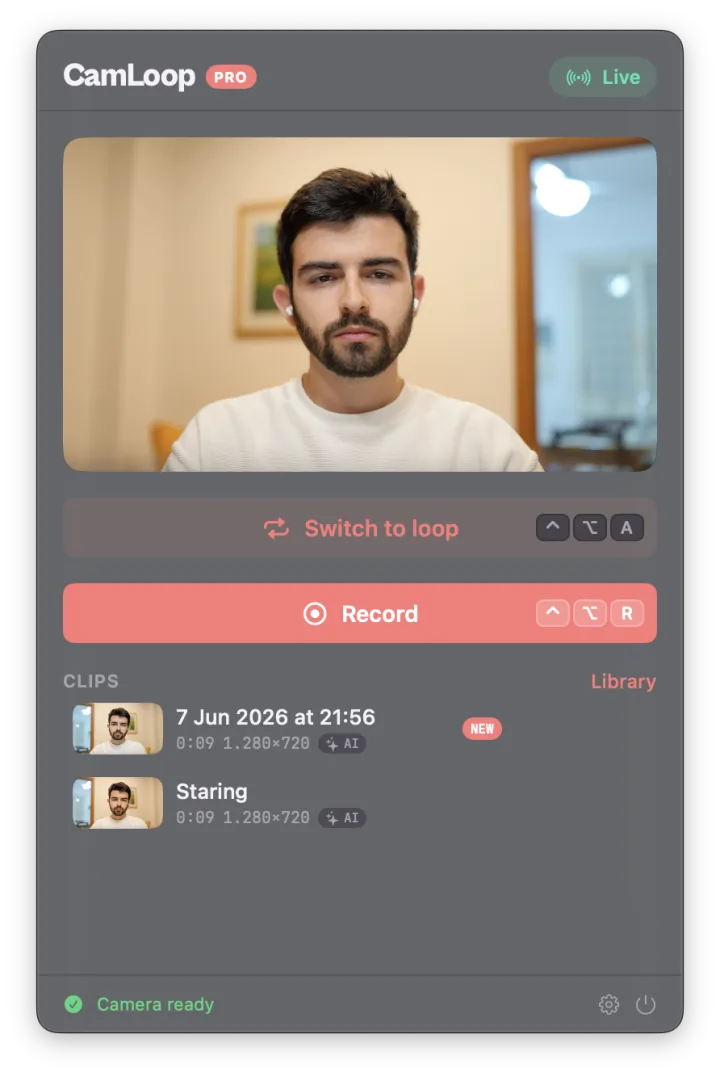
Because the loop is the entire product, the believability details are built in: ping-pong playback (forward, then reverse) removes the seam, an alignment view matches your live pose to the clip before you switch, and Pro's simulated lag adds connection-style freezes and catch-up jumps so the video never repeats the same way twice.
CamLoop is free for one saved clip up to ten seconds; Pro adds unlimited clips, global hotkeys, and the realism features. Everything stays local: clips live in a folder on your Mac and are never uploaded.
Method 2: OBS Studio with a looped media source
If you already use OBS for streaming or recording, it can loop a video file as a webcam too:
- Record a short video of yourself with Photo Booth, QuickTime, or OBS itself.
- In OBS, add a Media Source pointing at that file and tick Loop.
- Click Start Virtual Camera.
- In your meeting app, select OBS Virtual Camera as your camera.
It works, and it is free. The trade-offs: OBS has to stay running with your scene set up, there is no one-keystroke way to flip between your real camera and the loop mid-call, and a plain looped file repeats predictably, with a visible cut at the seam, which is exactly what makes loops look fake. If you want the full honest comparison, we wrote one: CamLoop vs OBS Virtual Camera.
What makes a loop believable
- Record yourself listening, not posing. Small natural movements (blinks, slight posture shifts) read as present. A frozen smile does not.
- Kill the seam. The moment a loop restarts is what gives it away. Ping-pong playback or an AI-morphed transition hides it.
- Match your pose at the switch. If your live position and the clip's first frame line up, nobody sees the cut in either direction.
- Prefer imperfection. Real webcams stutter. A loop that occasionally freezes and catches up like a mediocre connection is more believable than a flawless one.
- Keep your audio live. A tile that looks present but never answers is worse than a dark tile. Loop the camera only, and stay reachable.
FAQ
Can I loop a video as my webcam on a Mac? Yes. macOS supports virtual cameras, so an app can present a looping video to Zoom, Meet, Slack, Teams, FaceTime, or any app with a camera picker. The two common routes are CamLoop, built for exactly this, or OBS Studio with a looped media source.
Do Zoom, Meet, and Teams detect virtual cameras? They list them like any other webcam, and you select them the same way. Modern virtual cameras on macOS use Apple's camera-extension system, which is the supported, notarized way to add a camera.
Will a webcam loop look obviously fake? A raw looped file can, because it repeats predictably and cuts visibly at the seam. Loops read as natural when they use ping-pong playback, start from a pose that matches your live position, and optionally add connection-style stutters. CamLoop does these automatically; in OBS you would craft them by hand.
Is it safe to install a virtual camera on macOS? Stick to signed, notarized apps. macOS camera extensions require your explicit approval in System Settings, and a notarized app has been checked by Apple. CamLoop is notarized and keeps all video local.
Is a webcam loop the same as a fake webcam? The mechanics match what people call a fake webcam on a Mac: a virtual camera that plays a video instead of your live feed. The difference is intent and scope. A loop of your own real footage covers a short step-away moment on a call, it does not impersonate anyone, and honest tools keep your audio live so you stay genuinely present in the conversation.
If the goal is a believable loop with the least effort, CamLoop is the purpose-built option: record once, pick it as your camera, and step away on a hotkey. Download it free at camloop.app, and see the step-away guides for Zoom, Meet, and Teams.