Mac Camera App: What It Is Called and How to Open It
If you came to the Mac from an iPhone, you probably looked for an app called Camera and did not find one. You did not miss it: macOS has never shipped an app by that name. The camera is part of the Mac, and three apps already installed can open it. Here is what your camera is called, the quickest way to see the picture, and how to tell which app is using it right now.
In this guide
Step away without going dark
Once your camera works again, CamLoop can loop you while you step away from any call.
 Get it on Setapp
Is there a Camera app on Mac?
No. On an iPhone or iPad, Camera is an app. On a Mac, the camera is a device that any app can ask to use, and Apple ships three apps that show its picture: Photo Booth, FaceTime and QuickTime Player. All three live in your Applications folder, and none of them needs an account, a website or an internet connection to show you the picture.
What the Mac camera is called
The place you actually see a name is a camera picker: the Camera dropdown in Zoom, Meet or Teams, or the Video menu in FaceTime. On most Macs the built-in webcam is listed there as FaceTime HD Camera. Some recent MacBooks carry the model name instead, such as MacBook Pro Camera, and the exact label follows your macOS language.
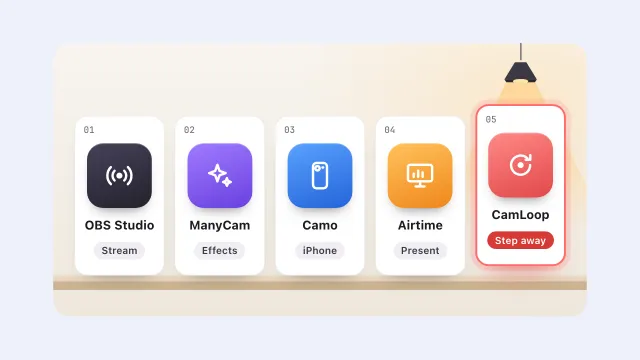
Anything else that can supply video adds its own row to that same list. An iPhone used through Continuity Camera shows up under the phone's name, an Apple Studio Display adds its camera, and every virtual camera you install (OBS, CamLoop and the like) adds one more.
- FaceTime HD Camera
- OBS Virtual Camera
- CamLoop
To read the exact name on your own Mac, hold Option, click the Apple menu and choose System Information, then click Camera under Hardware. It lists every physical camera macOS can see, with its model ID.
How to open the camera on a Mac
- Photo Booth is the fastest. Press Cmd+Space, type Photo Booth and press Return: the window opens straight onto your picture. It is the easiest way to check framing and light before a call, and the red shutter button takes a photo that stays on your Mac.
- FaceTime shows a preview of you as soon as it opens, before you call anyone. Its Video menu also lists every camera, so it doubles as a quick way to see what your Mac can choose from.
- QuickTime Player shows the live picture under File → New Movie Recording. The small arrow next to the record button picks the camera and the microphone, which makes it the one to use when you want a short test clip with sound.
Whichever app you open, the green light next to the lens comes on. Apple wires that light to the camera itself, so the camera cannot run while the light is off.
Do you need an online camera site?
Not really. Webcam test sites work through your browser's permission prompt, and they are a fair way to confirm that a browser can reach the camera before a Google Meet call. For everything else, Photo Booth does the same job with no website, no upload and no permission to remember to take back. If you did allow a site, Safari keeps that choice per site under Safari → Settings → Websites → Camera, and Chrome keeps its own list in its privacy settings.
How to see which app is using the camera
- Open Control Center in the menu bar. While any app has the camera or the microphone, the top of the panel names it.
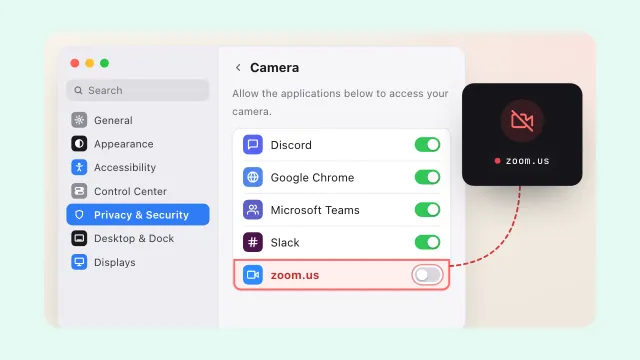
- Check System Settings → Privacy & Security → Camera. It lists every app that has asked for the camera and whether it is allowed. Switch off anything you do not recognise.
If an app shows a black picture or says there is no camera, that is a different checklist, and the Mac camera not working guide walks through it in order.
Where virtual cameras fit
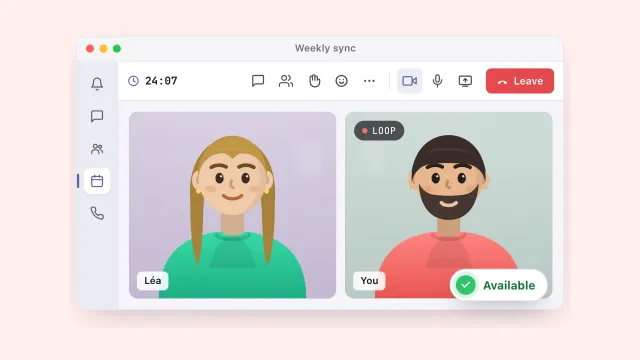
A virtual camera is software that adds a row to the camera picker, next to FaceTime HD Camera rather than instead of it. CamLoop, for example, loops a few seconds of you so you can step away from a call for a minute while your tile still looks present. If that is what brought you here, the virtual camera roundup for Mac compares the options.
FAQ
What is the camera app on a Mac called? There is no app named Camera on a Mac. To see the picture, open Photo Booth, FaceTime or QuickTime Player, all already installed. The camera itself is listed as FaceTime HD Camera on most Macs, or under the model name, such as MacBook Pro Camera, on some recent ones.
How do I turn on the camera on my MacBook? There is no switch. The camera turns on when an app uses it, and the green light next to the lens shows it is running. Photo Booth is the quickest way: open it and the picture appears. If an app shows nothing, allow it under System Settings, Privacy & Security, Camera.
Is there an online camera for Mac? Webcam test sites work in Safari or Chrome once you allow the camera, and they are useful to check that a browser can reach it. Photo Booth does the same job without a website, so most people do not need one.
How do I take a photo with my Mac camera? Open Photo Booth and click the red shutter button. The photo appears in the strip at the bottom; select it and choose File, Export to save a copy anywhere you like.
Camera on but picture wrong? Start with the fix list for a Mac camera that is not working, and if a virtual camera is missing from the picker, the virtual camera not showing guide covers that case.