Best Camera App for MacBook: Webcam Apps by Job
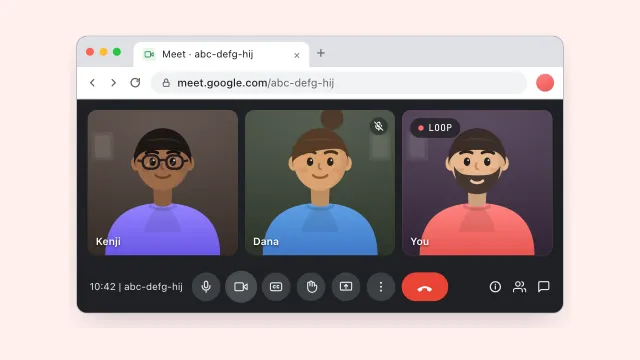
Search for the best camera app for a MacBook and you get lists that put a streaming studio next to a selfie booth, as if they did the same thing. They do not. A webcam app on a Mac does one of a handful of jobs: show you how you look, make you look better, tune an external camera, turn your iPhone into the webcam, record a clip, or cover for you while you step away. Most of those jobs are already handled by apps on your Mac. Here is the pick for each job, what it costs, and where it falls short.
In this guide
- The short answer
- Check how you look: Photo Booth or Hand Mirror
- Look better on calls: the Video Effects menu
- Tune an external webcam: your maker's app
- Use your iPhone as the webcam: Continuity Camera or Camo
- Record a clip of yourself: QuickTime Player
- Stream or build scenes: OBS Studio
- Step away from a call: CamLoop
Step away without going dark
CamLoop is a virtual camera with one job: looping you while you step away from a call.
 Get it on Setapp
The short answer
Start with the apps already on your Mac, and add one only for a job they cannot do.
| You want to… | Pick | Price |
|---|---|---|
| Check how you look before a call | Photo Booth or Hand Mirror | Built in / free |
| Look better on any call | The Video Effects menu | Built in |
| Tune an external webcam | Your camera maker's app | Free with the camera |
| Use your iPhone as the webcam | Continuity Camera or Camo | Built in / free tier, paid Pro |
| Record a clip of yourself | QuickTime Player | Built in |
| Stream or build scenes | OBS Studio | Free |
| Step away from a call | CamLoop | Free tier, Pro $4.99/mo or $49 lifetime, or in Setapp |
Check how you look: Photo Booth or Hand Mirror
Photo Booth is already in your Applications folder and opens straight onto your picture, which makes it the quickest check of framing and light before a call. It takes photos and short videos, and nothing leaves your Mac.
Hand Mirror does the same check from the menu bar: one click shows a small preview of your camera, a second click hides it. It is free in the Mac App Store with an optional paid upgrade, and it is also one of the picks in our Setapp apps for video calls.
Where they fall short: both only show you the picture. Neither changes what the call sees.
Look better on calls: the Video Effects menu
The app most people are really after is not an app at all. While any app is using the camera, recent versions of macOS add a camera icon to the menu bar (older ones keep it in Control Center as Video Effects). Its switches work the same in Zoom, Meet, Teams and FaceTime:
- Portrait blurs the room behind you.
- Studio Light dims the background and lights your face, which rescues a dark desk better than any filter.
- Center Stage keeps you in frame as you move, on cameras that support it, such as an iPhone or a Studio Display.
- Background swaps the room for a color or a picture on recent macOS versions.
- Reactions set off balloons or fireworks when you make certain hand gestures. Worth turning off before a work call.
- Portrait
- Studio Light
- Center Stage
- Background
- Reactions
Where it falls short: most effects need an Apple silicon Mac, and none of them fixes a camera pointing up at your chin. Raise the laptop to eye level and face a window first; the effects are the finishing touch.
Tune an external webcam: your maker's app
If you plugged in a Logitech, Elgato, Insta360 or Opal camera, its own app is the best webcam app for it: Logi Tune, Camera Hub, Link Controller or Composer. They set exposure, white balance, zoom and focus, and many store those settings in the camera, so they hold in every call app. They are free with the camera.
Where they fall short: each one controls only its own brand. The built-in MacBook camera has no such app; macOS tunes its picture automatically, and generic control apps rarely change much on it.
Use your iPhone as the webcam: Continuity Camera or Camo
The biggest picture upgrade for a MacBook is probably in your pocket. With Continuity Camera (macOS Ventura or later), an iPhone near the Mac shows up as one more camera in every picker, with Center Stage and Desk View built in. Mount it at eye level and pick it in your call app.
Camo goes further: it works with iPhone and Android phones and adds manual control over lens, zoom and color. It has a free tier and a paid Pro.
Where they fall short: the phone needs a mount and some battery, and it is tied up as a camera for the whole call.
Record a clip of yourself: QuickTime Player
For a video message or a test clip with sound, open QuickTime Player and choose File → New Movie Recording. The small arrow next to the record button picks the camera, the microphone and the quality. You get a plain .mov file you can send anywhere.
Where it falls short: it records the camera or the screen, not both in one frame. For your face over a screen recording, use a screen recorder with a camera bubble, or OBS.
Stream or build scenes: OBS Studio
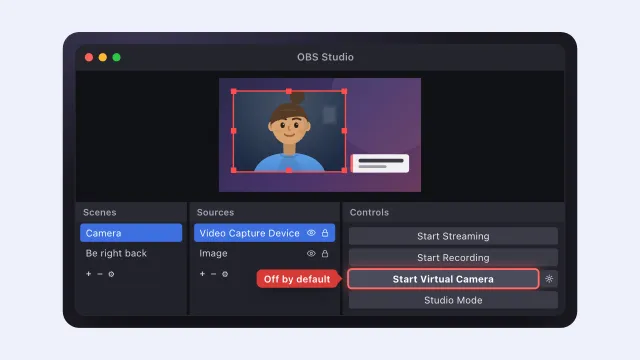
OBS Studio is free and does what the others do not: scenes, overlays, screen plus camera, live streaming, and a virtual camera that sends the result into Zoom or Meet. The OBS on Mac setup guide walks through it.
Where it falls short: it is a studio, so expect to build scenes before you get anything out of it. If a virtual camera is what you need, the virtual camera roundup for Mac compares OBS with ManyCam, Camo, Airtime and CamLoop.
Step away from a call: CamLoop
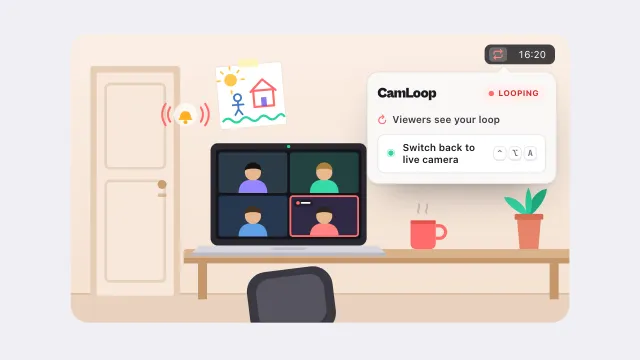
CamLoop is the one we make, so weigh this pick with that in mind. It records a few seconds of you and plays them on a loop through its own virtual camera, so you can answer the door or refill your coffee for a minute while your tile still shows you at your desk. One hotkey switches to the loop and back. CamLoop never touches your audio, so your microphone works as usual and you can answer if someone says your name.
Where it falls short: it does one thing. No effects, no recording, no streaming. It is free to start; Pro costs $4.99 a month or $49 once, and it is included in Setapp.
FAQ
What is the best camera app for a MacBook? For most people, the apps already installed: Photo Booth to check how you look, the Video Effects menu to look better on calls, and QuickTime Player to record. Add another app only for a job those cannot do, such as using your iPhone as the webcam or streaming.
Is there a free webcam app for Mac? Yes. Photo Booth, FaceTime and QuickTime Player come with every Mac, Hand Mirror is free in the Mac App Store, and OBS Studio is free and open source.
How can I make my MacBook camera look better? Put the light in front of you, raise the laptop so the camera sits at eye level, and wipe the lens. Then turn on Studio Light or Portrait in the Video Effects menu. For a bigger jump, use an iPhone as the webcam with Continuity Camera.
Do I need a webcam app to use my camera in Zoom or Teams? No. Call apps use the camera directly, and you choose it in the app's video settings. The apps in this guide add a check, effects, a better camera or a loop on top.
Camera missing or black? Start with the fix list for a Mac camera that is not working. Not sure what the built-in camera is even called? The Mac camera app guide covers the names and the three apps that open it.